

Make Google Scholar work even harder for you!
31/07/2025

Google Scholar can be a great place to start your search on a topic as it is easy to use and searches a huge range of sources. However, it does not search everything, and it can be hard to determine the quality of articles found in Google Scholar so you should not use it as your only source of information, but as a starting point to supplement searches done using the Library’s quality academic databases.
Here we have some helpful tips for boosting your searches when using Google Scholar.
Link Google Scholar to Cranfield University Library
To make it easier to find full text you can link the library’s subscriptions to your Google Scholar account. To set this up:
- Go to Google Scholar and sign in if you wish. If you don’t sign in you can still follow the steps below.
- Click the ‘hamburger menu’ at the top left of the screen and choose ‘Settings’
- Click ‘Library links’
- Type Cranfield in the search box and search. Once the results screen shows, check all the boxes and click save
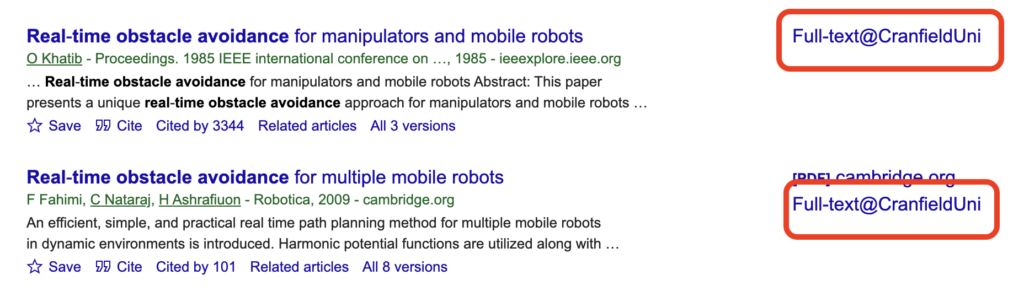
- The next time you do a search, the Full-text@ CranfieldUni links will show next to results we have full text access to.
Focus your results by using advanced search tricks
Instead of sifting through millions of results, Google Scholar offers advanced search functions that help you narrow your focus and find highly relevant results.
Boolean operators
- AND: All search terms are combined using AND by default, so there’s no need to type this operator.
- OR: To combine synonyms, type them at the beginning of your search query and type OR between the terms.
- NOT: Use the minus sign (–) to exclude a term from your results.
Example: thermal power OR geothermal -fossil fuels
Matching
- use “double quotation marks” around keywords to search for exact phrases
- type allintitle: to ensure all your terms appear in the title of the results
Example: allintitle:supply chain “Red Sea”
Source
You can specify that results come from a particular source or be a certain file type;
- site: specify results from a particular website
Example: site:cranfield.ac.uk
- source: find results only from a particular journal
Example: source:”journal of cleaner production”
- filetype: finds results in a certain file format such as PDF or PowerPoint (ppt).
Example: to find a PDF file about solar power, type: solar power filetype:pdf
Combining functions
You can combine these functions into a single search too, if you wanted to;
Example: solar power source:”journal of cleaner production” filetype:pdf
Speed up your reading and evaluation of PDF documents
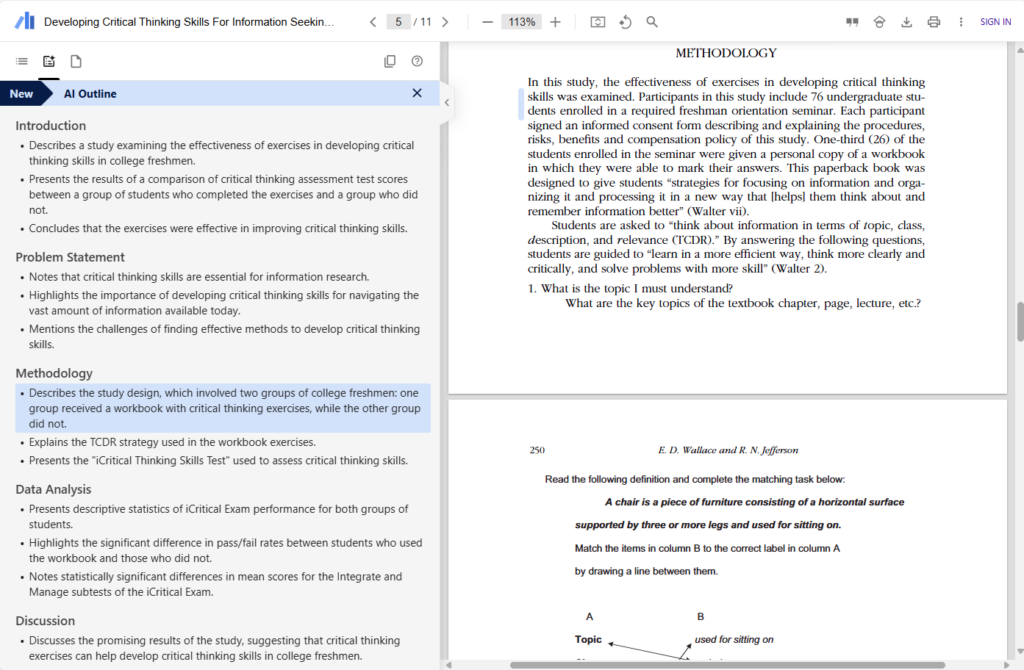
If you have a lot of papers to read, you might find the Google Scholar PDF Reader browser extension helpful. This extension is available for both Chrome and Edge browsers.
Once installed, the extension activates when you open a PDF in your browser. It provides an AI-generated outline of the PDF alongside the original text. Each point in the AI outline is clickable, taking you to the exact spot in the original paper it refers to, so you can easily verify information and see the original work, helping to avoid accidental plagiarism. The extension can significantly speed up your reading and evaluation process, making it easier to pinpoint the sections most relevant to your work.
Why not check out your subject or course guide on the Library website to find out which high-quality library databases are the most appropriate to help you find academic literature in your subject area?
Feature Image from Google Scholar.

Categories & Tags:
Leave a comment on this post:
You might also like…
Library services over Easter, 3-6 April
Kings Norton Library will remain open for study 24/7. You will need your University ID card to enter the building and can use the self-service machines to borrow and return items as usual. Barrington Library ...

How do I access the full-text of Harvard Business Review (HBR)?
This is a frequently asked question, and it's worth knowing how to access this key management journal. So, how do you access HBR in full-text? The short answer is via our eJournals finder. You can find ...

Engineering problem to solve? Let Knovel help you find a solution
Did you know that Knovel provides you with more than just eBooks? Knovel is a key database for many engineering, mechanical and materials courses here at Cranfield University, and contains content from an extensive range ...
What happens when female scholars meet influential leaders?
On the 5 March 2026, our British Council Women in STEM Scholars had the privilege of sitting down with two excellent role models of industry and academia: Professor Dame Karen Holford, ...
From MSc to CEO: Igniting a research revolution
For many, a master’s degree is achieving a big milestone. Kilyan Ocampo, Computational Fluid Dynamics alumni shares how studying at Cranfield helped launch his career in the energy sector. Today, Kilyan ...

Commuting, collaborating and growing: My first term experience at Cranfield
My first term at Cranfield University has been an extremely positive and rewarding experience. While the course has been intense at times, it has pushed me in the best possible way and allowed me ...