

Exploring global news with Factiva
11/09/2025

Whether you’re tracking global business trends, analysing media coverage, or researching international markets, Factiva is a powerful tool that can help you access high-quality, up-to-date news from around the world. Factiva is one of the largest news aggregators available with more than 30,000 sources in 32 languages, including many major national and international publications, local news, newswires, and business sources. These can be searched using Factiva’s powerful search tool and comprehensive indexes. Whether you’re looking for breaking news in Brazil, policy updates in China, or market trends in Europe, Factiva has you covered.
Searching: Classic Factiva Interface
The first search box you see on Factiva is the “Free text search”. You can enter your search terms or company name, adjust the date range, and hit search.
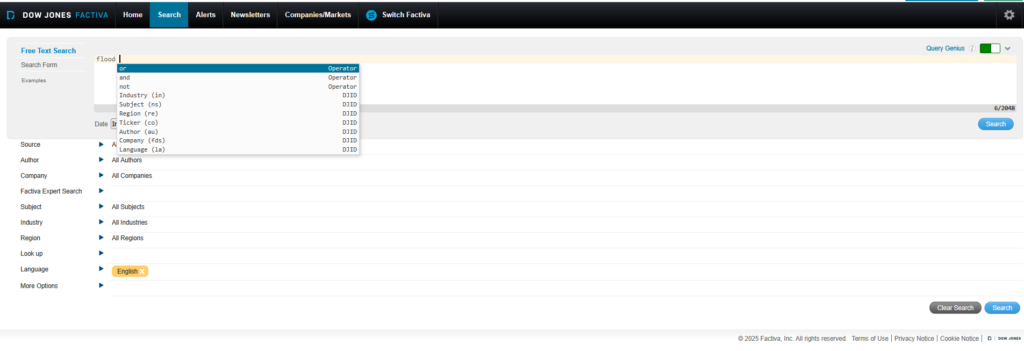
If you want to perform a more advanced search, the second option – the Search Form – allows you to include or exclude words and to search by phrase. Toggle between Free Text Search and the Search Form by clicking on the links on the left of the search boxes.

Either search option lets you specify a date range – the default is the last three months.
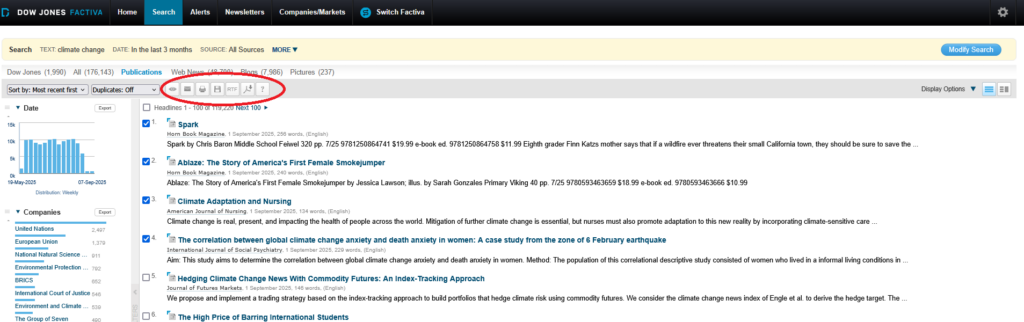
Refining your search with filters
Search results
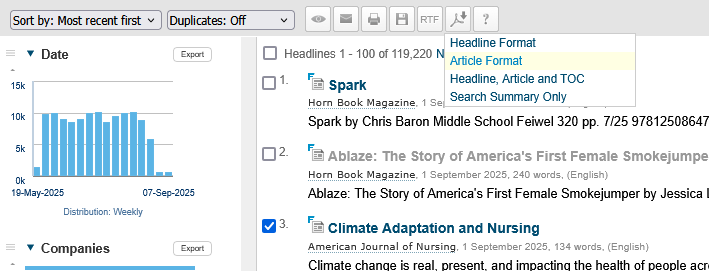
Your results will appear in a list like this.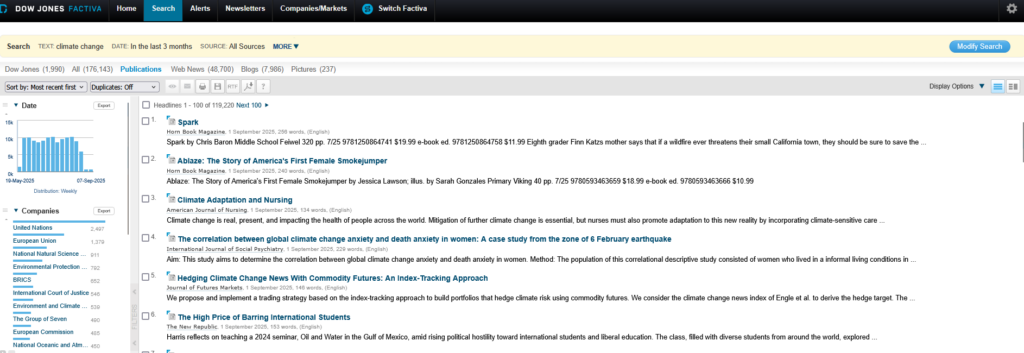
Searching: New Factiva Interface
In September 2024, Factiva launched a redesigned search interface powered by AI. It uses natural language processing to interpret the context and intent behind search queries, rather than relying solely on keywords. It supports phrase searching and can accommodate misspellings and typos, making it more accessible to a broader range of users. However, it’s worth noting that the new interface currently offers fewer features and filters compared to the classic version. For more advanced searches—such as those involving complex search operators or detailed filtering—the classic interface remains the preferred option. Factiva can also be used to search for company information. See our separate post for more information. If you have any questions about Factiva, newspaper content, or any other area of Library services, please do get in touch.
Feature image from Pixabay. Available at: https://pixabay.com/photos/business-background-blog-2651346/

Categories & Tags:
Leave a comment on this post:
You might also like…

Introducing Kings Norton Library
Welcome to all our new students! We are looking forward to meeting you soon. You will find Kings Norton Library in the centre of the Cranfield campus, and it is open 24/7 to all staff ...

Setting your research on the right course: Four questions every researcher should ask
Whether you are just beginning your doctoral journey or are already well into your research career, successful research rarely happens by accident. Like any successful mission, it depends on good planning, informed decisions, and getting ...

5 budgeting mistakes students make (and how to avoid them)
Good financial planning isn't about how much money you have. It's about the habits you build. We asked Dr Lakshmy Subramanian, Course Director for the Banking, Economics and Finance MSc, about the budgeting mistakes ...

Finding your reading materials
Use Library Search Library Search is the first place to start when you are trying to find academic sources for your work. This is the search box on the library website homepage. It allows you ...

Formula 1 was the dream and Cranfield was the conduit
I still remember the exact moment Formula 1 (F1) got its hooks into me. I was in my first year of an aerospace undergraduate engineering degree when I watched a video about the sport ...
Introducing Barrington Library
Welcome to all our new students! Barrington Library supports all the students and staff at Cranfield Defence and Security on the Shrivenham site. We are looking forward to meeting you all soon, in person or ...
Comments are closed.