


How do I create a share price graph in Bloomberg?
12/09/2024
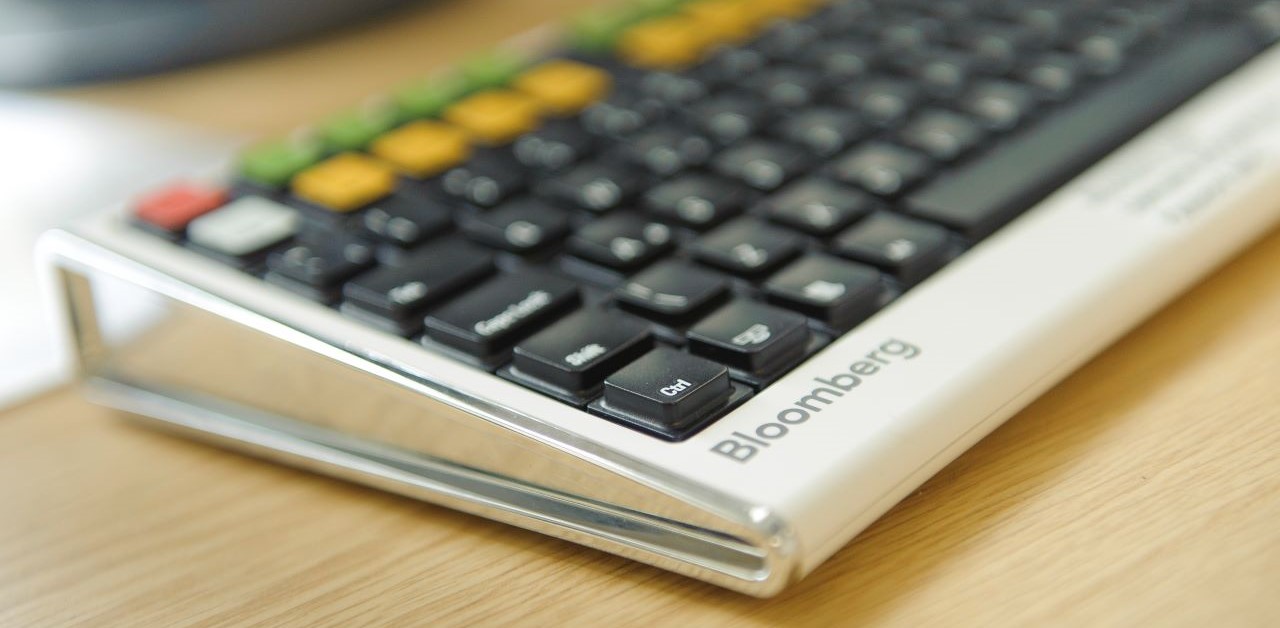
One of the simplest – and coolest – things even a beginner can do on Bloomberg is to produce a company share price graph. If you’ve never done this before – or if the very thought fills you with horror – read on. This post will show you how.
The first time we meet the Bloomberg price graph tends to be when browsing through a company’s Equities menu. Find a company first using whichever method you prefer and, from its equities menu, if you use it, select option <GP Line Chart>.
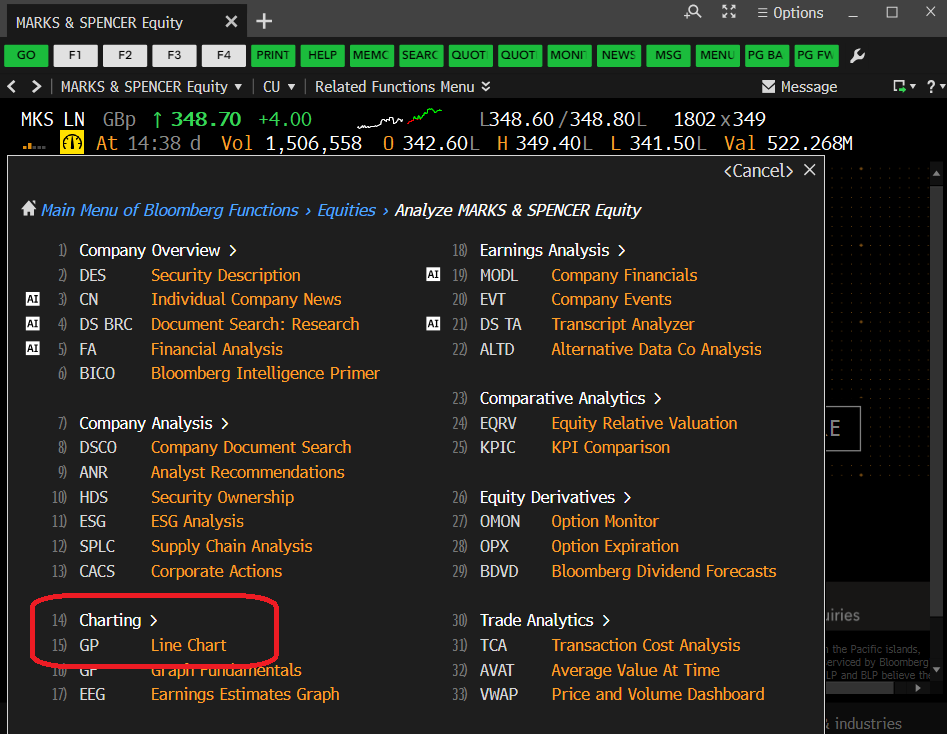
The Bloomberg Equities menu, showing the GP option
Selecting <GP> should take you instantly to a 12 month price chart, looking a lot like that displayed below (well, it should if you’re looking at Marks & Spencer!). The top panel of the graph displays share price and the lower panel indicates the volume of shares traded on any particular date.
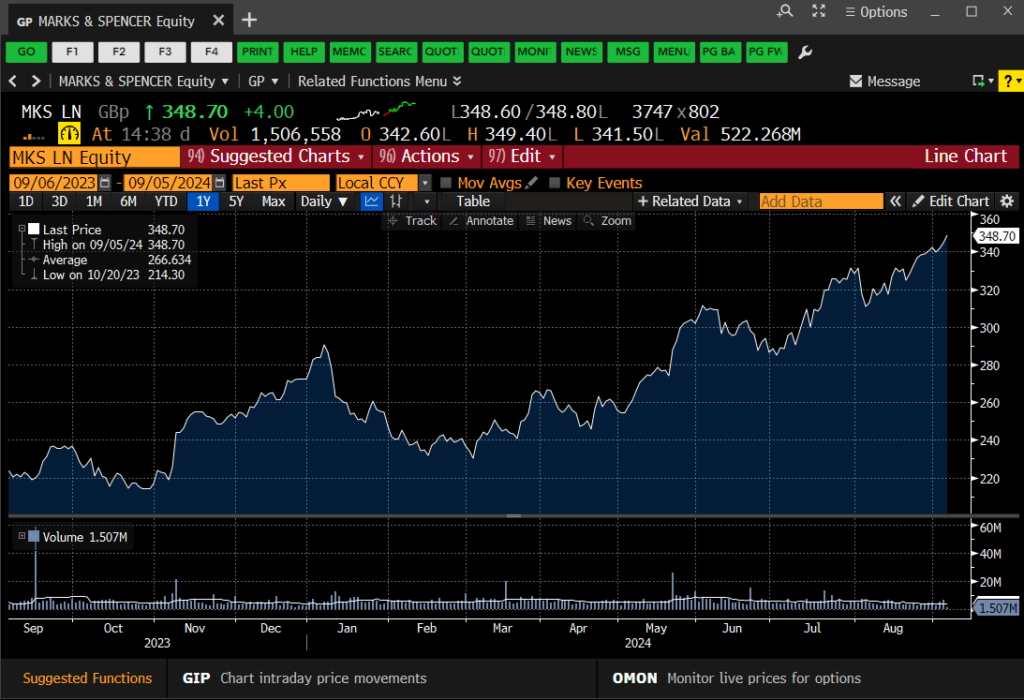
The Bloomberg GP Price Graph
Very nice, I hear you say, but is that it? Well, no, of course it’s not. This is Bloomberg. There are lots of things you can do here to make your chart more exciting or relevant. You can…
- Select another pre-defined time period. Use the options (1D, 3D, etc.) at the top-left of the chart to select.
- Define your own time period. Use the orange date boxes to create your own fixed date range. (NB: In Bloomberg anything in an orange box can be clicked on and edited).
- Add in competitor companies or indices for comparison purposes. Click on ‘Edit’ > ‘Securities & Data’ on the red bar to do this.
- Add in tags for ‘Key Events’ via the on-screen icon. Add your own annotations using the ‘Annotate’ option.
- Bloomberg’s default chart format is a line chart, but those of you who want more detail can change to a candlestick graph or similar by clicking on candlestick icon above the chart.
- Normalise your graph. Give all the datasets a starting value of 100 to track their fluctuations against one-another. See below. Available via the ‘Edit’ function.
- Change backgrounds and line colours from defaults. Edit your chart legend Available via the ‘Edit’ function.
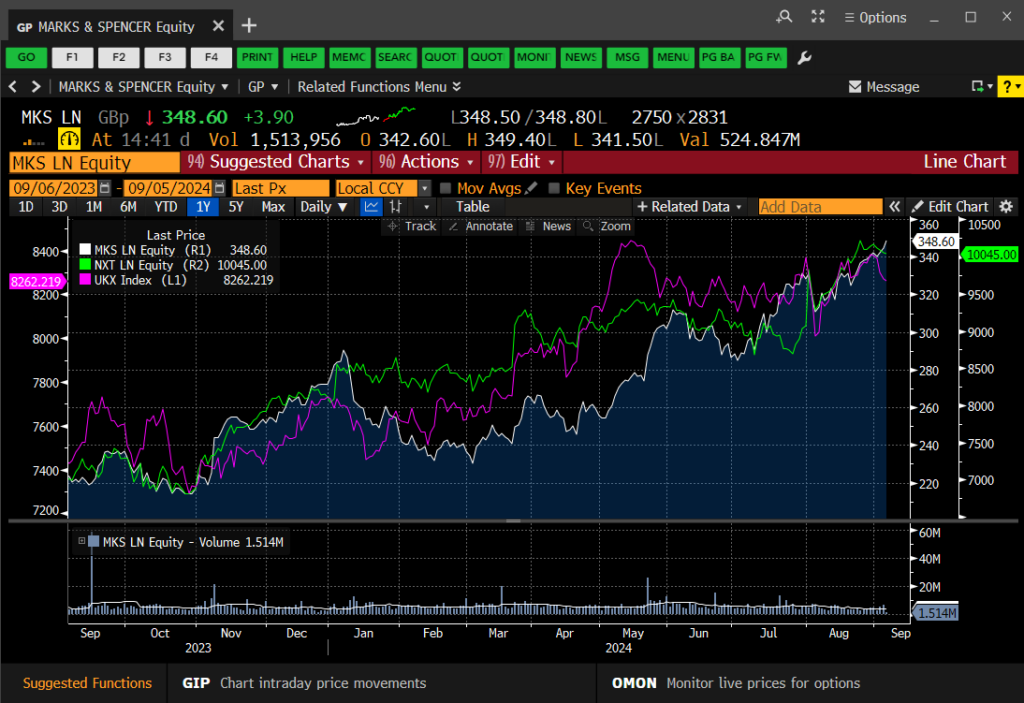
Charting multiple data series in your GP line chart
Once your graph is complete, simply right-click on it and copy the image to the clipboard, then paste it straight into MS Word or Excel. If you would rather download the data behind it, right-click and choose to copy the data instead.
If you’d like to know more, or to arrange a Bloomberg taster session, contact the Library.

Categories & Tags:
Leave a comment on this post:
You might also like…

Moving to the UK to study? How to plan for banking, exchange rates and transfers
Currency and banking are two of the most practical parts of financial planning for international students. They are also often the most overlooked. We asked Dr Lakshmy Subramanian, Course Director for Cranfield University's Banking, ...

Cranfield: an environment where innovation thrives
The latest Knowledge Exchange Framework rankings from UK Research and Innovation (UKRI) gives an insight into the real and meaningful impact that UK universities have. The seven categories that make up KEF6 cover everything ...

How Cranfield accelerated my career in Logistics and Supply Chain Management
After graduating from the MSc in Logistics and Supply Chain Management at Cranfield University, I've been reflecting on the experiences that made my journey so valuable and the impact it has had on my ...

Mendeley: a powerful tool to organise and manage your references
Are you looking for a way to manage your references, create in-text citations and reference lists for your assignments or thesis? If so, you may wish to consider using Mendeley. What is it? Mendeley is ...

Keen to develop your study skills?
Alongside the technical skills and academic knowledge that you will gain on your course, as a Cranfield student you have the opportunity to develop a range of other skills that can enhance your learning experience. ...
The V-conomy: powering the sixth wave of global economic growth
The world could be on the verge of a major surge in economic growth and development, driven by the convergence of AI and clean energy technology. Waiting to ride the K-wave The Russian ...
Comments are closed.