


Creating and using constituent lists in Datastream
08/01/2026

Whether you’re analysing industry performance, or comparing company financials, Datastream is a powerful tool. One of its most useful features is the ability to work with constituent lists — collections of companies grouped by index, sector, or your own custom criteria.
Accessing Datastream
Datastream is available via Workspace from LSEG. Register for a Workspace licence using these instructions and choose Datastream as an add-in. Once you have an account, you can use Workspace (and Datastream) on your own PC/laptop.
To have full Datastream access, you will need to download the Workspace software which will give you access to the Excel add-in. The software should be available in your welcome email but, if not, you will find a link to it from the LSEG website.
You will see that they mention a version of the software for Macs, but this is not fully compatible. The downloaded software is also available on the PCs in the Library, should you have any problems downloading it on to your own device.
What’s a constituent list?
A constituent list is essentially a group of entities used in your research. They might be companies from a particular index (like the FTSE 100 or S&P 500) or sector (like banking or automotive) or they may have no obvious connection other than your interest. These lists let you pull data — such as share price, market value, or earnings per share — for multiple companies simultaneously.
Datastream provides many pre-defined lists, but you can also create your own to suit your research needs.
Why create your own list?
You might want to:
- Exclude certain companies from a defined group
- Include companies from different indices or sectors.
- Build a list from search results based on specific criteria
Custom lists give you flexibility and precision in your data analysis.
How to create a constituent list in Datastream (Excel add-in)
Here’s a step-by-step guide using the Datastream Excel add-in:
- Opening Workspace in Excel
- Open Excel
- Click on the Workspace tab and sign-in
- Click the Datastream Formula tab in the Excel ribbon.
- Finding your base list
- Change Category to ‘Constituent Lists’
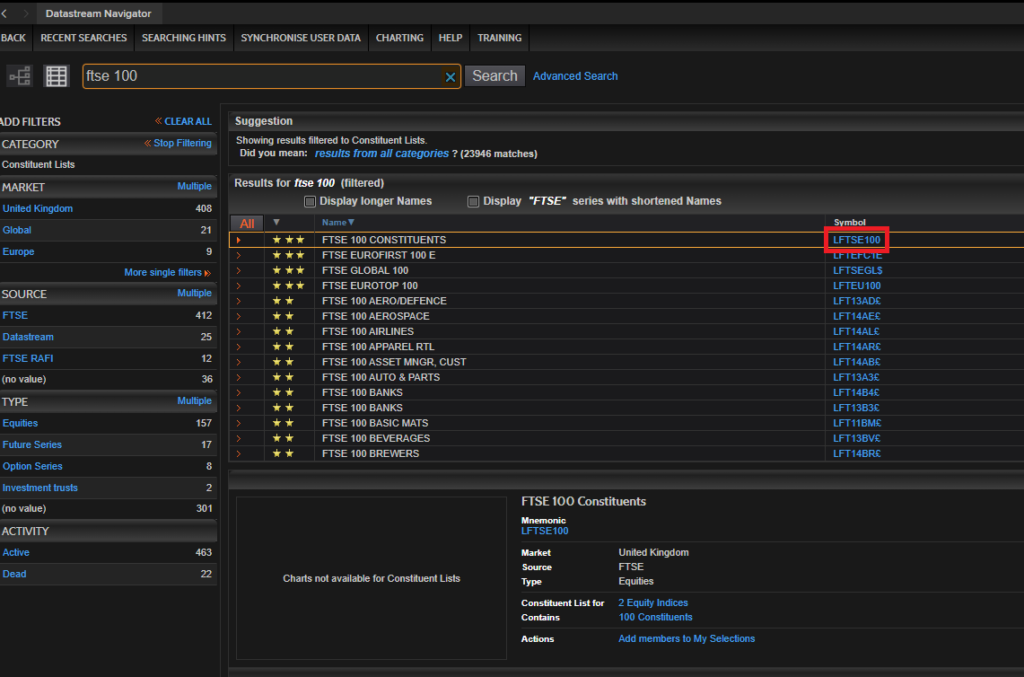
- Click the upside-down funnel icon to the right of the Series/Lists search box to search for a series to open the Datastream Navigator box

- Type your index into the search box (e.g. FTSE 100) and hit Search.
- Click on the blue mnemonic for the constituent list (e.g. LFTSE100).
- Adding datatypes
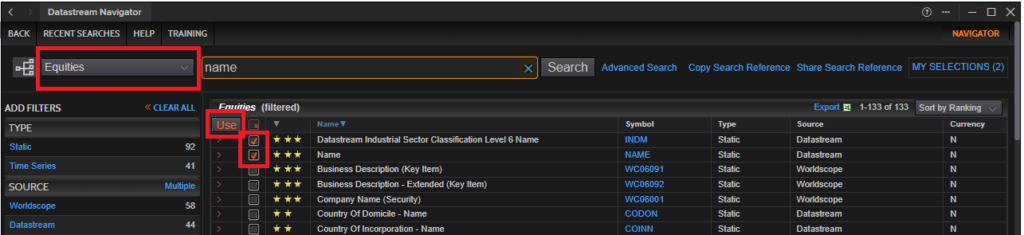
- Click the upside down funnel to the right of the Datatypes/Expressions search box
- Make sure the series type is set to Equities.
- Search for datatypes as required, like:
- Company Name (NAME )
- Industry Name (INDM)
- Any other financial metrics you need
- Select one by clicking on the blue mnemonic, or multiple by ticking the box and clicking on ‘Use’
Tips:
- Click the red arrow to the left of a series/list or datatype to see its definition in the box below. Items with ⭐⭐⭐ are usually key ones.
- Always include NAME in your datatypes so you can identify companies in your results.
- Submitting your request
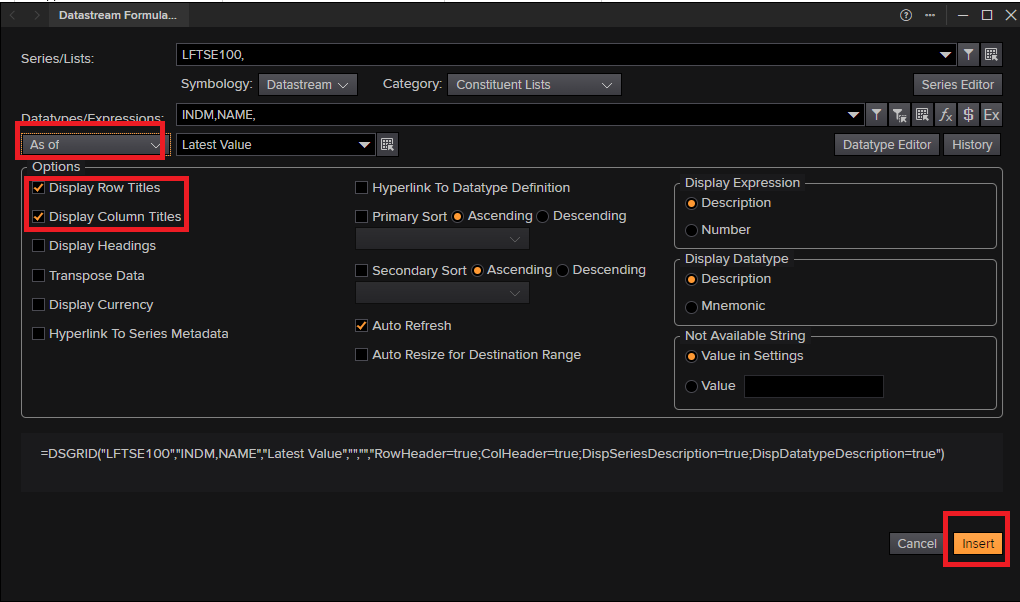
- Change the timespan from ‘start-end’ to ‘as of’ and amend date setting if required
- Choose display options (Row/Column titles recommended – these are chosen by default)).
- Click Insert to generate your list.
- Editing your list
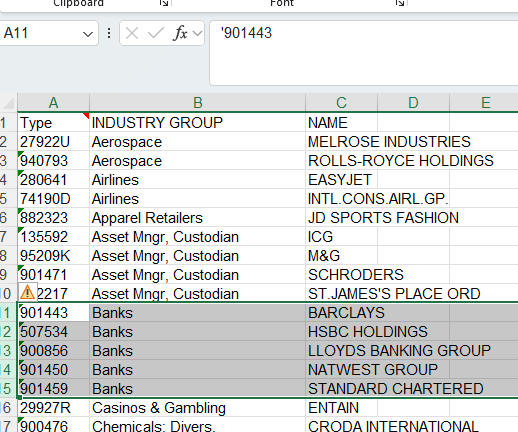
Now you can edit the constituent list in Excel to create your own list. If, for example, you want your list to be FTSE 100 companies, without banks or financial firms you would:
- Use Excel’s Sort feature to organise by Industry.
- Delete companies you don’t want (e.g. banks or financial firms).
- Creating and saving the list
Once you’ve got your final list:
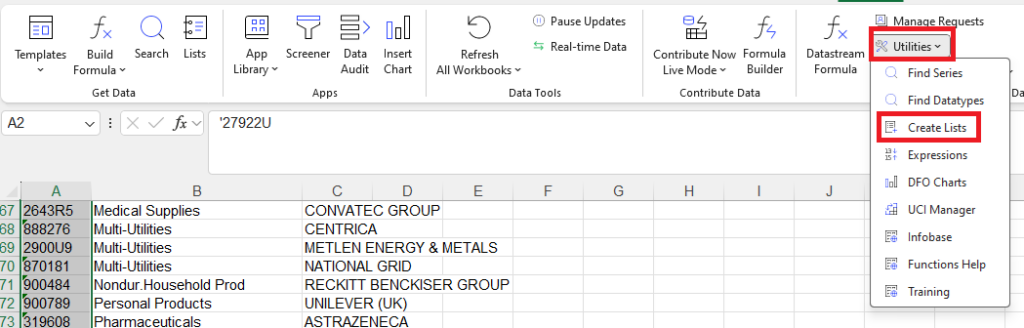
- Highlight the Datastream codes (in the ‘Type’ column).
- On the Datastream toolbar, under Utilities, choose ‘Create Lists’.
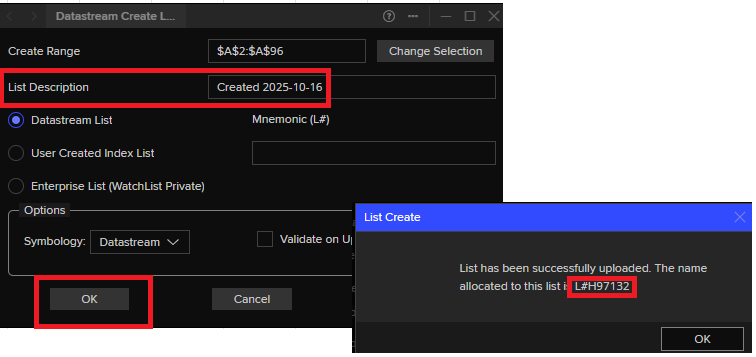
- Click OK in the Datastream Create Lists pop up box (you can amend List Description if you want, to make your List more memorable and searchable).
- A confirmation box will appear with your list’s mainframe name (e.g. L#H97132). Save this list name! Click OK
How to use your saved list
You can now use your list in Static or Time Series Requests:
- In Datastream Formula, change Category to ‘User Portfolios & Lists’
- Click on the upside down funnel
- You can search by description (here in ‘Name’ column) or by name of your list (here in ‘Symbol’ column eg L#…)
- Click on blue mnemonic to choose list
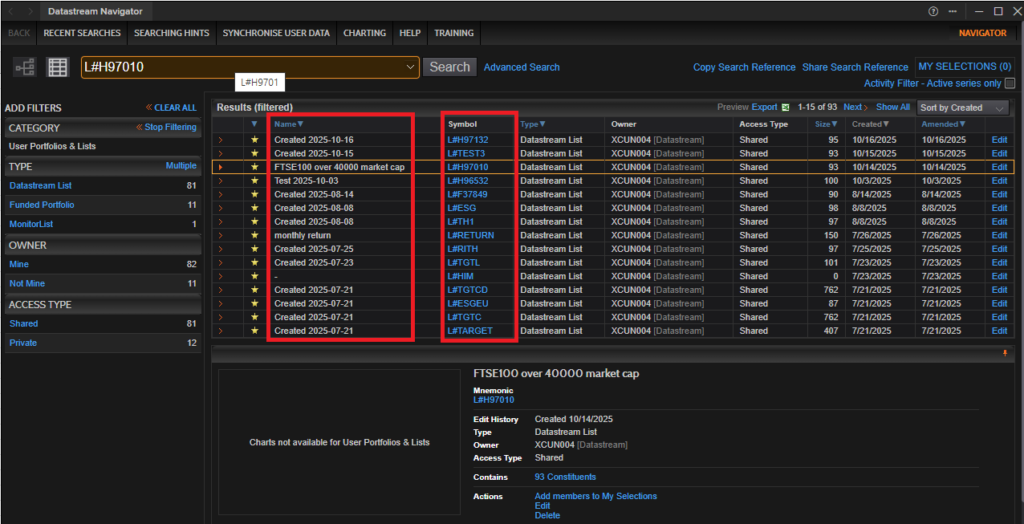
- Add the metrics you want from Datatypes as per Step 3 above (if using Time Series Requests, don’t forget to change ‘As-Of’ to ‘Start-End’ and make any necessary amendments to timespans)
- Click on Insert
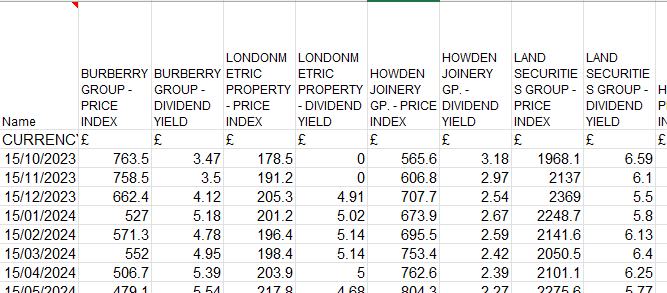
- The example below uses our amended FTSE 100 list to retrieve monthly figures for price index and dividend yield for our specified companies.
Feature image from Pixabay. Available here: https://pixabay.com/photos/business-stock-finance-market-1730089/
If you would like to know more about Datastream, LSEG Workspace or any other financial resource, please contact the Library team.

Categories & Tags:
Leave a comment on this post:
You might also like…

Keen to develop your study skills?
Alongside the technical skills and academic knowledge that you will gain on your course, as a Cranfield student you have the opportunity to develop a range of other skills that can enhance your learning experience. ...

The V-conomy: powering the sixth wave of global economic growth
The world could be on the verge of a major surge in economic growth and development, driven by the convergence of AI and clean energy technology. Waiting to ride the K-wave The Russian ...

Need help using the Python programming language?
We know some of our students are currently trying to learn Python, so we wanted to make you aware of some great LinkedIn Learning videos that can help. But don't you have to pay for ...

What does it really take to become a Chevening Scholar?
Say “Turkmenistan” to most people and you’ll get a blank look. That was true when I left Ashgabat for the UK to study an MSc in Logistics and Supply Chain Management at Cranfield University ...

Get a head start on referencing and plagiarism
We offer a module on Referencing And Avoiding Plagiarism which you can find on your Canvas dashboard. It explains the role and importance of citing references and how to incorporate the work of other authors ...

How Cranfield shaped my journey as an Aerospace Engineer
If I'm being specific about the moment it clicked, it was reading a paper called "On the Role and Challenges of Computational Fluid Dynamics (CFD) in the Aerospace Industry" by two Boeing engineers, P. ...
Comments are closed.